
Account Credentials
After your email address is assigned to a SprayVision account, you will receive an email containing your username and password.
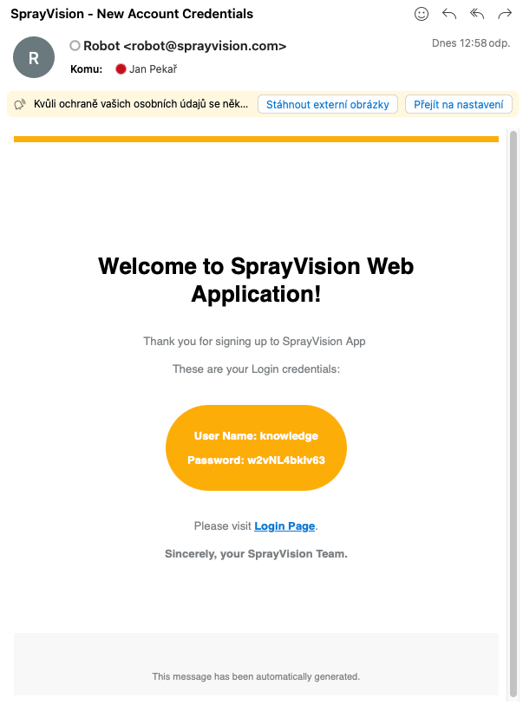
ℹ️ NOTE – Some email clients may incorrectly render the graphics.
In such case, please try a different email client or select the text manually –
if the orange graphic is missing, the content may appear as white text on a white background.
Immediately after the first login, please change your password:
Settings → My Settings → Change Password
Login Attempt Policy
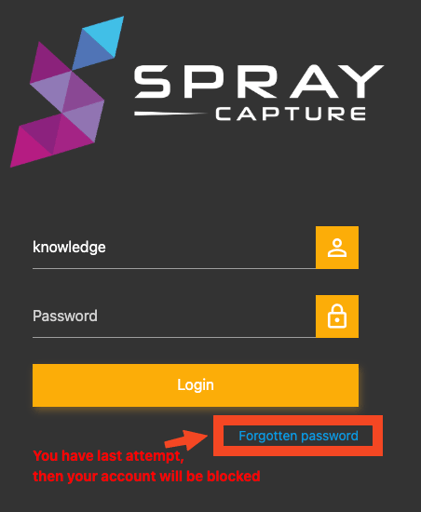
For security reasons, you are limited to 5 login attempts. During the attempts, warning messages are shown below the login window.
If you reach 4/5 attempts, please use the “Forgotten password” feature.
If all 5 attempts fail, your account will be immediately blocked and the
"Forgotten password" feature will be deactivated.
Just enter the existing and correct username, email address and captcha.
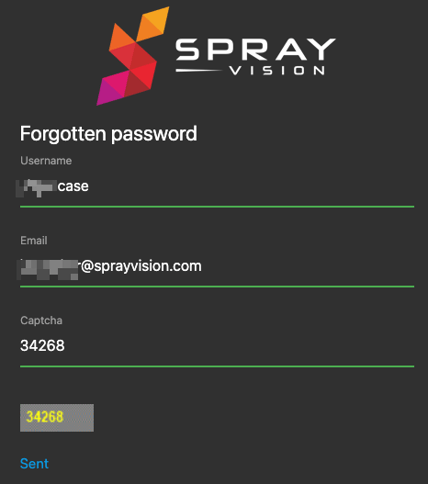
⚠️ IMPORTANT – The password reset link in the email is only valid for 20 minutes, so please make sure to confirm it immediately.
ℹ️ NOTE – If you click on the blue "Send" button and some fields are incorrect, the captcha is refreshed and will immediately show the "Invalid Captcha" message.
Do not worry, you probably entered the captcha correctly before sending.
What if My Account is Blocked
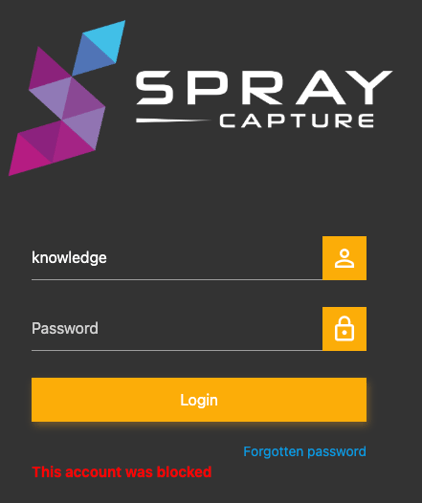
If your account becomes blocked, you will receive a confirmation email from robot@sprayvision.com to the email address assigned to your account.
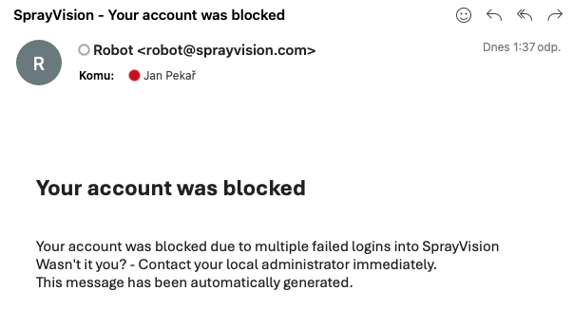
When the account is blocked, the "Forgotten password" feature will no longer work until your account is enabled again – for security reasons.
Solution
Please contact your SprayVision Admin (key user) for assistance.
ℹ️ NOTE – if you are not the key user or if they are unavailable, do not hesitate to contact us at helpdesk@sprayvision.com.
To speed up the communication, please describe shortly the step where you got stuck.
The admin should follow these steps in Settings → Users and Perms:
1. Enable your account
This is mandatory.
“User will be enabled. Be aware, the password remains the same as before disabling.”
dark grey text = inactive account
⚠️ IMPORTANT – in this step, the user has zero remaining attempts to enter a wrong password.
If they enter the wrong password again, it is necessary to proceed to step 2, even if the account still appears active.
2. Revoke password
This re-enables the “Forgotten password” feature.
Then the user will fill in the following:
-
-
Check for changed email address
A changed email can also be the cause of login issues.
-
Generate new password
This option creates a new password immediately.
The admin must share the generated password manually from the admin menu.
-
Administrator settings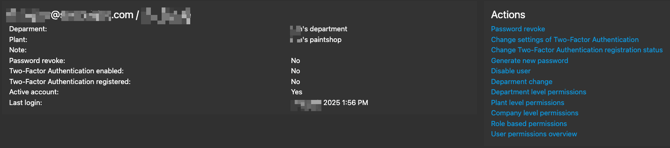
Password Policy
- Minimum length is 12 characters
- The password must contain at least 4 digits
- The password must contain at least 2 capital letters
- Keep the new password a secret
If you require any further clarification, encounter unexpected behavior, or would like assistance with specific parts of the workflow, please do not hesitate to contact our support team at helpdesk@sprayvision.com.
We are ready to assist you and ensure that your experience with SprayVision is as smooth and effective as possible.