
Why Use It?
- Data-driven stable production
- Automatic metrics
- Objective evaluations
No More Guesswork or Subjective Individual Assessments
- Digitize your coating patterns – evaluate historical data whenever you want
- Monitor applicator performance over time, easily and confidently
- Detect subtle deviations early – increase first pass yield
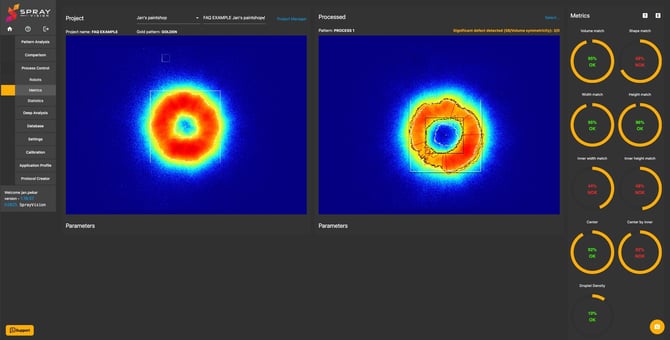
- In the left visualization, you can see the Golden/Master pattern which is determining what the output should look like.
- In the right visualization, you can see the processed pattern we compare during the startup of production, after cleaning, etc.
- Metrics are the objective feedback by percentage deviation of match to the Master pattern. These metrics help you decide whether your application technology is working properly, and if you can start production without worries.
Three Simple Steps to Process Control
-
Spray and define your Golden Standard
Choose a reference coating pattern as your Master pattern. -
Set tolerance thresholds
Customize sensitivity and eliminate subjective evaluations. -
Compare & control
Instantly compare current output with the standard and act before defects lead to scrap.
Interested in learning more? The following information in this article will take you through the Process Control Metrics in more detail.
Quick Navigation
-
Step 1: Spray Golden Standard
1.1 Spray Rules Checklist
2.2 Dynamic Coating Position -
Step 2: Create Your Project
2.1 Metric Descriptions
2.2 Project Manager Features -
Step 3: Run Your Evaluation
1. Step 1: Spray Golden Standard
First, spray your Master pattern – the Golden Standard. Think of it as a digital fingerprint of the applicator’s behavior.
To ensure accuracy:
- The output must be repeatable, stable, and OK for production.
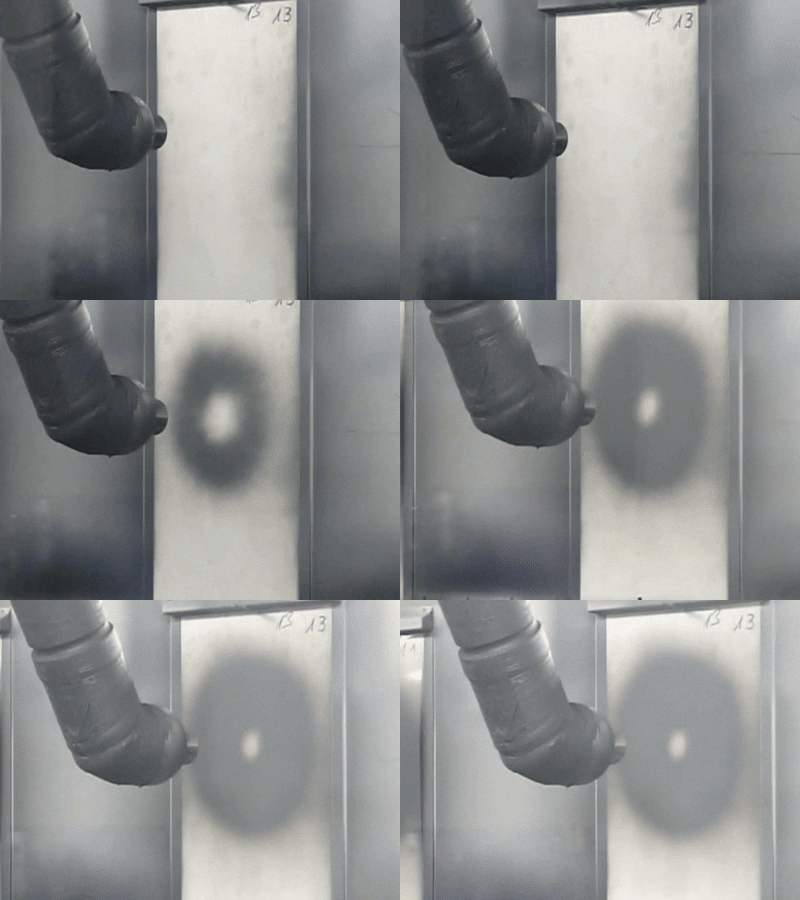
- Irregular shapes may indicate the need for troubleshooting.
ℹ️ NOTE – Common issues:
Irregular shape – slight clogging or damage to the shaping ring or air cap.
Irregular volume – check fluid pressure progression just before and during triggering the paint. Significant peaks or drops can negatively affect the volume.
Once a clean, stable pattern is achieved, use the same parameters for all future comparisons.
💡 TIP – Use a static spray pattern on foil for best defect recognition.
Dynamic patterns are also supported (available metrics: Volume deviation, Height deviation, SB50 deviation, Variable SB).
1.1 Spray Rules Checklist ✅
- Capture the full pattern with minimal overspray.
- Pattern should be centered on the foil.
- For optimal results, use the original transparent foil or a similar transparent sheet measuring 450 × 600 mm.
- No sagging – thickness should be optimal.
- Not too dark or too light – ensure visibility and recognition ability of pattern.
How is the pattern detected? Read more in the "Pattern Size" paragraph - Use low paint flow and slightly longer trigger time (0.2–0.5 s).
- Assign calibration before defining the Golden Standard.
- Always use the same paint type.
ℹ️ NOTE – If the Golden Standard has been assigned with a calibration, all matched patterns must have the calibration as well.
If you assign a non-calibrated pattern, the Process Control will automatically apply the same calibration as the Golden Standard.
⚠️ IMPORTANT – If the Golden Standard has no calibration assigned, the calibration will also be removed from the process pattern to ensure a valid 1:1 data comparison.
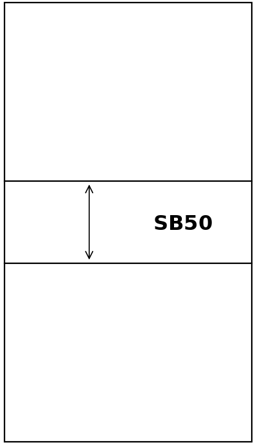
The SB50 metrics will be calculated from intensity – not thickness.
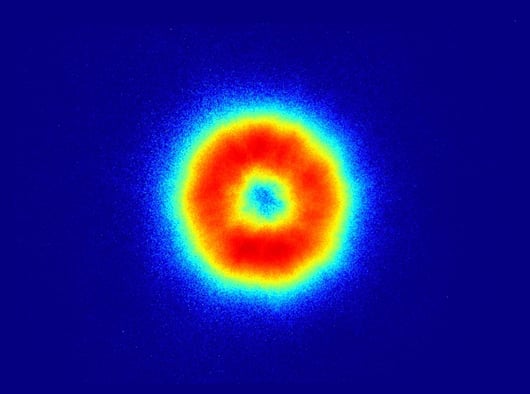
The static Golden Standard foil should look like the following image – or better
(up to your requirements for tolerances of the match):
The dynamic Golden Standard foil should look like the following image and the direction must be horizontal (will be automatically cropped):
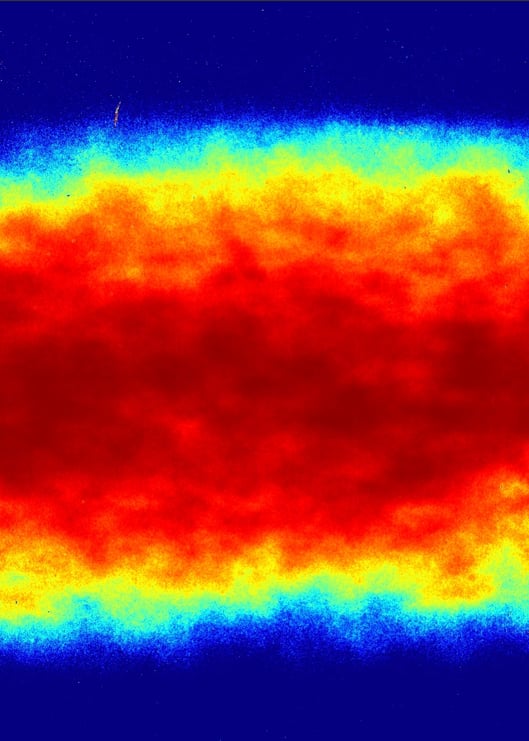
The reason for the dynamic foiled being turned horizontal is that the SB50 values are calculated vertically, and we need to capture the entire pattern (with portrait choice), including the overspray.
It is also important to maintain the full 450 mm width of the foil to allow for edge taping (for coating) and for proper auto-cropping later.
1.2 Dynamic Coating Position
2. Step 2: Create Your Project
Before you begin evaluating, please set up your project:
- Go to: Left Menu → Process Control → Metrics → Project Manager
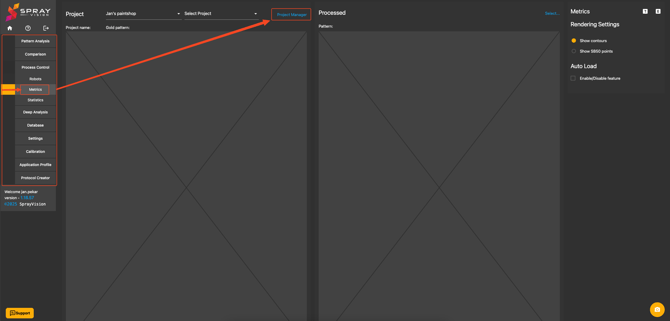
- A pop-up window will appear:

- Please fill out following variables:
- Project name
- Department – where the project should be visible
- Note – your internal description
- Golden Standard – select the best pattern from the database
- Pattern Type – static bell / static ellipse / dynamic
- Tolerance Settings – default suggestion for a quick start:
- 15% for general use
- 10% for tighter control
- 5% for expert users
- 0% for tolerance – reason why you can see below in Metric descriptions / Tolerance settings
To quickly explore the functionality, please feel free to skip ahead to Step 3: Run Your Evaluation and adjust the metric descriptions later if needed.
2.1 Metric Descriptions
Below is an overview of the comparison metrics used when evaluating spray patterns.
Shape Match
The SB50 values are calculated from the static spray pattern of the gun or bell.
These values are then compared between the Golden Standard and the processed pattern.
The similarity score between the SB50 measurements defines the Shape Match.

Width Match
Measures the horizontal span of the pattern, from the leftmost to the rightmost point, based on a bounding rectangle.
Applicable to static gun and bell patterns.

Height Match
Measures the vertical span of the pattern, from the topmost to the bottom-most point using the same bounding method.
Suitable for static gun and bell patterns.
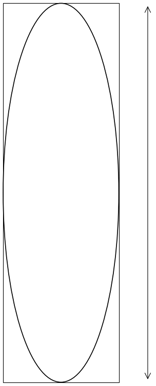
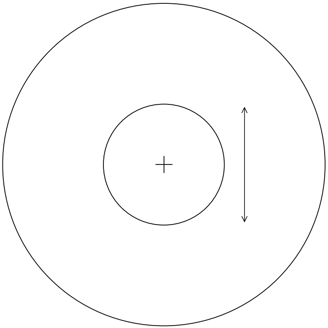
Inner Width
Used for static bell patterns. Measures the width of the inner circle, calculated between its left and right edges.
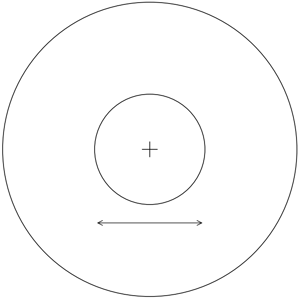
Inner Height
Similar to Inner Width, but measures the vertical height between the top and bottom edges of the inner circle.
Applies only to static bell patterns.
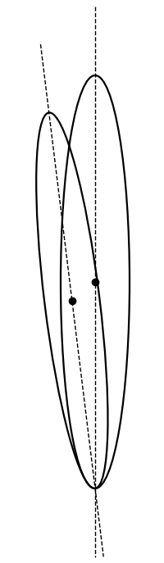
Angle
Determines the orientation of the ellipse axis in static gun patterns.
Calculated as the angle between the top and bottom points of the spray ellipse.
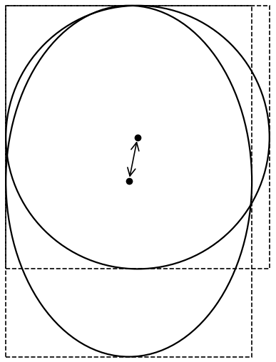
Center Deviation
Compares the X and Y coordinates of the geometric centers between the Golden Standard and the processed pattern.
Used for static gun and static bell.
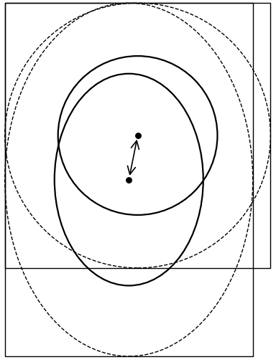
Inner Center Deviation
Compares the center of the inner circle using its bounding rectangle.
Applies only to static bell patterns.
SB50 Deviation
For dynamic patterns, the SB50 value is tracked throughout the spray motion.
This metric highlights deviations over time between the Golden Standard and the evaluated pattern.
Volume Match
Based on calibration data and the painted surface area, the total transferred volume is calculated.
Compares the sprayed volume between the Golden Standard and the evaluated pattern.
Applicable to both static and dynamic gun or bell patterns.
⚠️ IMPORTANT – Since the volume is calculated from the whole image, any additional marks (e.g. ink, scratches, touchmarks) on the foil will affect the result.
Variable SB50 Value
In some dynamic conditions, SB50 points may fall outside the foil area, especially with high-opacity coatings.
In such cases, alternative thresholds like SB80 are used to calculate the maximum value and 80% of maximum.
Applies to both static and dynamic patterns.
⚠️ IMPORTANT – Incorrect SB settings may result in the following error:
“Processing failed, inner circle not detected – cause:
insufficient SB measurements count for the processed pattern.”
Ensure the SB measurement area is properly defined.
How it behaves when you are changing SB request:
-
SB = 50%
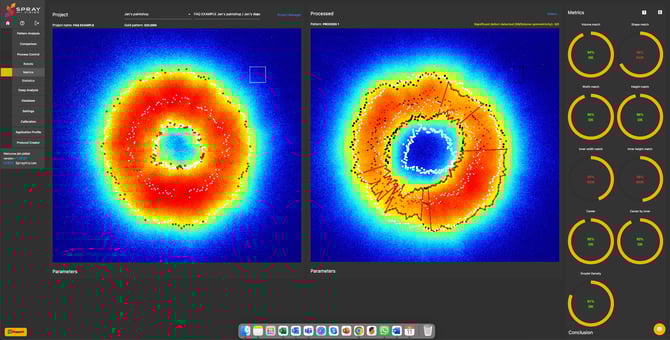
- SB = 80%
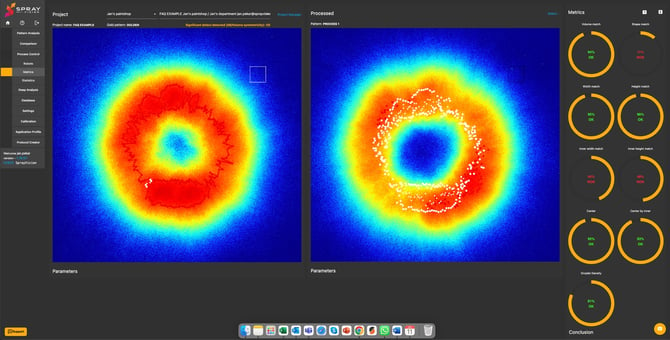
If the effective part of your pattern lies outside the foil, you can increase the SB value to avoid searching for points outside the image.
We still recommend spraying the correct size if possible, before increasing the SB value to such a high level.
Tolerance Settings
This is a percentage buffer applied to all metric deviations.
For example, if the Shape Match deviation is 50% and the tolerance is 10%, the final deviation is 55%.
This allows for flexibility in edge cases where small deviations are considered acceptable based on customer requirements.
2.2 Project Manager Features
In the Project Manager you can:
- Open Advanced Settings via the gear icon.
- Adjust tolerances via the pencil icon.
- Delete the project.
- Open your project using the roller icon.
ℹ️ NOTE – After any changes, it is necessary reopen the project to apply the new settings.
Advanced Settings

Change advanced settings when:
- You want full control over the boundaries used in metric evaluation
(custom settings below). - You want to correctly use the droplet area measurement and are setting up a new project.
- The Golden Standard is marked as defective, but you believe it is correct and fully functional – or the other way around.
Increase the sensitivity to make the feature detect and compare all defects.
Decrease it if minor deviations should be ignored.
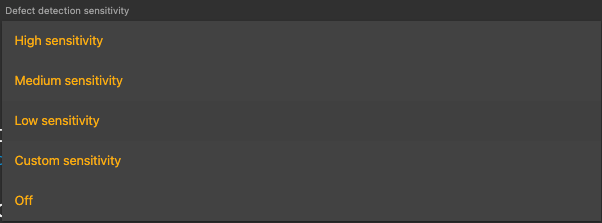
Each project type has different possibilities of change:
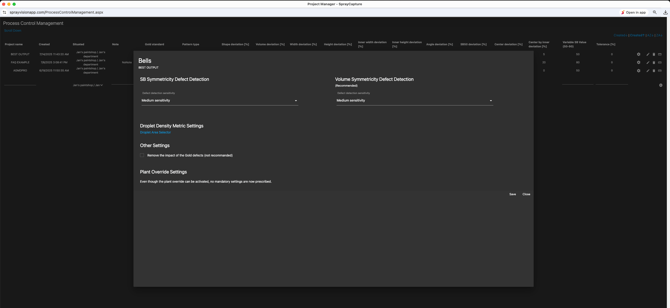
- Bell
For the bell project type, you can adjust the SB symmetricity defect detection, volume symmetricity defect detection, and the droplet density area.
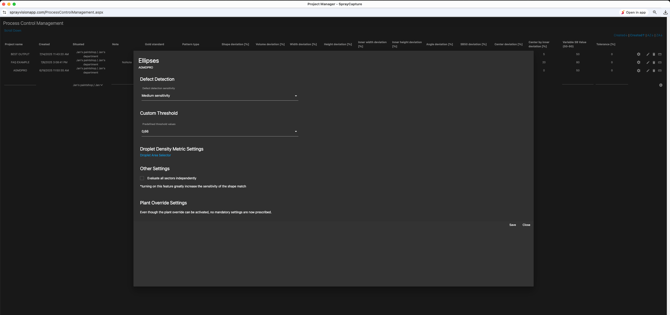
- Ellipse
For the ellipse project type, you can adjust the defect detection, custom threshold, and the droplet density area.
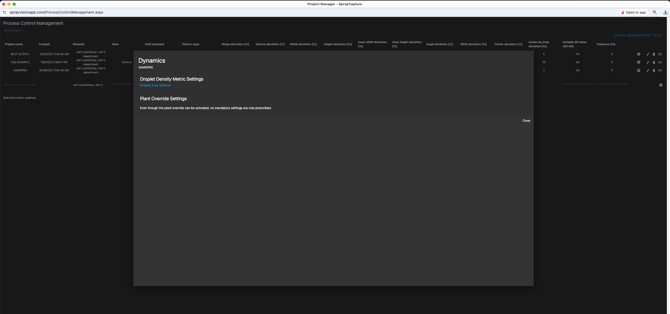
- Dynamic
In the dynamic project type, you can select the droplet density area.
- Custom Settings
In the custom settings, you can adjust the following options:
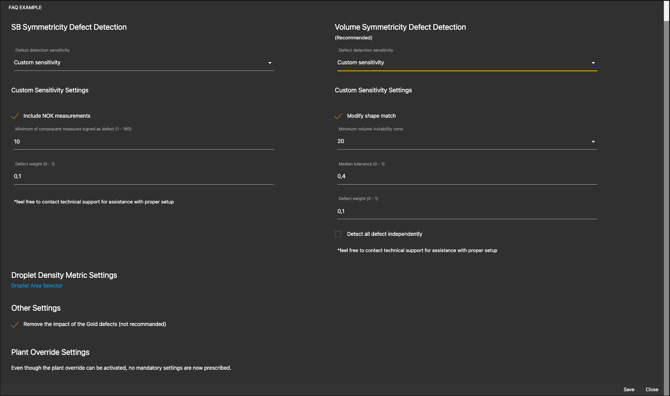
Custom Settings Explained:
SB Symmetricity Defect Detection
- Include NOK measurements
NOK measurement is a measurement that is statistically different than the other measurements.
This property is for including the NOK measurements in the overall calculation of the Shape Match. -
Minimum of consequent measures signed as defect
By a statistics examination, every measurement can be signed as a defect.
The measurement step is every 2° across the whole bell perimeter.
This property determines how many consequent measures are signed as a defect. -
Defect weight
The weight value for increasing the impact of the defect on the overall calculation of the Shape Match. The bigger the value is, the bigger the impact to Shape Match. - Remove the impact of the Gold defects
Option to remove the influence of defects in the Golden Pattern from the overall Shape Match calculation.
Enabling this option is not recommended – Golden Standards should be free of defects, even if the production result is acceptable.
Volume symmetricity defect detection
-
Modify shape match
Property for enabling the impact of the found defect on the overall calculation of the Shape Match.
- Minimum volume instability zone
This value defines an angle of the slice where the defect by volume will be evaluated. Possible values: 10°, 20°, 30°, 40°, 45°. - Median tolerance
This property modifies the statistical area of volumes, where the result is signed as OK, without defect.
The bigger the value is, the bigger the area of volumes = lower sensitivity to defects. The lower the value is, the lower the area of volumes = higher sensitivity to defects. - Defect weight
The weight value for increasing the impact of the defect on the overall calculation of the Shape Match.
The bigger the value is, the bigger the impact to Shape Match.
-
Detect all defects independently
Property for enabling the detection of the defects that are consequences of the wrong paint distribution.
Enabling this property will greatly penalize the overall Shape Match if the volume symmetricity defect is found.
Droplet Density Metric Settings
-
Droplet Area Selector
Available for calibrated golden standards only.
Read more about Droplet Selector in this article.
3. Step 3: Run Your Evaluation
You are ready to begin matching!
- Select your project
Choose a project via the popup 'ruler' icon 📏 on the right,
or via 'Process Control → Metrics → Select Project' on the top bar.
💡 Once you have established your project, you can significantly reduce the work time with Project Manager and Process control thanks to the
Process Control – Robots feature. - Select your current process pattern
Click the "Select…" button and double-click a database item.
Pattern should be coated with same parameters as Golden Standard.
If you accidentally or intentionally load the wrong pattern, which could negatively affect the statistical results, please select the checkmark, enter the reason and remark describing the mistake, and click the "Save" button.
This will allow you to filter out such mistakes later when reviewing your statistics.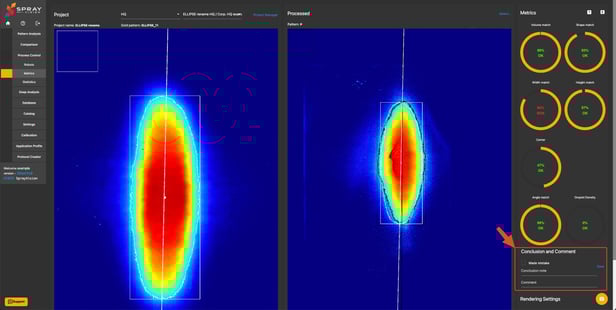
This conclusion field will disappear immediately after saving. - Rendering tips
Choose image rendering settings before selecting the image.
Changing the rendering later requires re-selection of the process pattern.
By default, the original grayscale image is displayed. To view the colored image, go to Settings > My Settings > Process Control and select 'Jet' or 'Original' to change.
💡 If you are using your project more often, you can analyze the relationship of results over time thanks to the Process Control – Statistics feature. - Enable Auto Load
When selected, the next captured image will load automatically after capturing of a new pattern via Capturing menu / Process control type of capturing. - View results instantly
Match results shown on the right.
Download/export .pdf report to share result with your colleagues via the 🇪 (export) button on the top right.
See the legend for all marking on the pattern via the ⍰ button next to the 🇪 on the top right.
Hover over any metric circle to view exact values.
If you require any further clarification, encounter unexpected behavior, or would like assistance with specific parts of the workflow, please do not hesitate to contact our support team at helpdesk@sprayvision.com.
We are ready to assist you and ensure that your experience with SprayVision is as smooth and effective as possible.