
Why use it?
-
Discover the highest reachable efficiency of your applicator.
-
Evaluate TE (Transfer Efficiency) quickly.
-
Get data-driven results.
-
Monitor applicator performance over time – easily and confidently.
How to use it?
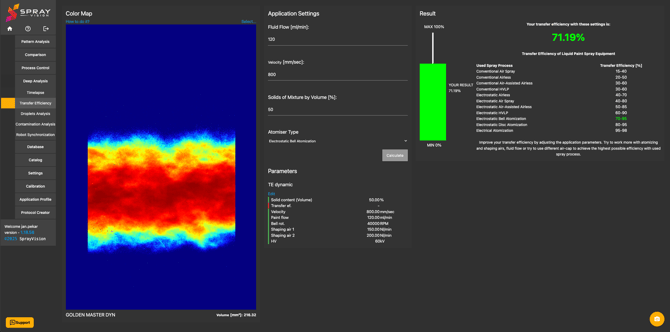
1. Click on the “Select…” button at the top center and choose a calibrated portrait dynamic pattern from the database.
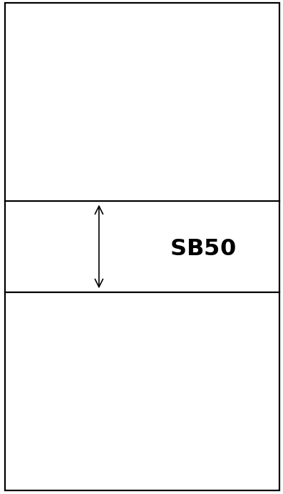
2. The selected pattern is automatically cropped by 50 mm on both the left and right sides to eliminate edge artifacts caused by fixing tape (e.g. over-sprayed marks or surface contamination).
- If you need to use a pattern narrower than 350 mm (standard foil width is 450 mm – 100 mm total crop), you must first apply cropping manually in the Pattern Editor. The feature will then use your crop, not the automatic one.
💡 TIP – Did you know?
If you need to edit more images at once you can speed up your work by batch processing.
3. For Transfer Analysis calculation, please enter:
- Fluid flow
- Coating velocity (speed of the coating tool)
- Solid content of the paint
4. For visualization, choose the atomizer type.
This setting does not affect the calculation – it only colors the result relative to common performance ranges for the selected applicator type.
5. Click "Calculate" and you can immediately know how much paint was transferred to the foil, based on the fluid flow and selected area of transfer.
⚠️ IMPORTANT – Inaccurate calibration will affect results of the TE calculation!
6. You can use the Application Profile feature to store the TE result along with the pattern.
If you will use the application profile, input parameters (e.g. applicator velocity and other settings important for TE) can be also saved immediately during image capturing.
You will then see the application profile below the loaded image, and by clicking on the blue "Edit" button you can copy and save the TE result for later comparisons.