
Process Control Robots – What Can This Feature Help You With?
Maximum acceleration of process control through a visual layout of robots/applicators, each already linked to a predefined Golden Standard and tolerances. This allows for a fast and easy output check of each applicator – accessible even for non-expert operators.
- Fast capturing of process patterns without needing to set capture parameters (the capture will follow the predefined setup for the selected applicator/robot).
- Quick loading of process patterns associated with specific applicators/robots from the database.
- Instant access to statistics relevant to a selected applicator/robot.
- Clear selection between applicators/robots grouped by area of usage
(e.g. Primer booth, Base booth, Clear booth, Lab 1, Lab 2, etc.).
In summary, this module allows you to:
- Detect potential defects in applicators or paint early.
- Analyze applicator condition over time with data-driven technology.
- Eliminate unexpected costs, reduce production waste, and maintain
top-level production efficiency.
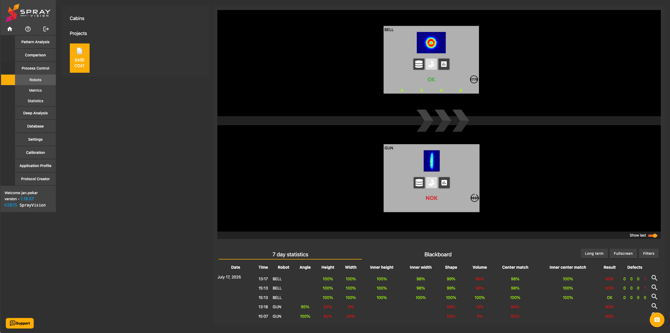
Example Robot Cabin Layout
🔎 Quick Navigation
How to Create Your Own Layout?
Real Time Creation of Basic Robot Cabin Layout, Step by Step
Layout and Functions Description
How to Create Your Own Layout?
ℹ️ NOTE – Changes are saved automatically during the creation process.
-
Create as many projects as you need for the Golden/Master patterns.
Path: Menu → Process control → Metrics → Project manager
You may use a single universal Golden Standard with broader tolerances for the whole booth, or define individual Golden/Master patterns for each robot/applicator.
We recommend fine-tuning the detection tolerance and sensitivity using patterns collected over at least a short time period, in order to achieve appropriate settings and avoid false positives or excessive rejection. -
Create your own layout that matches the real setup.
Add entities to represent each robot, applicator, or other relevant equipment.
Path: Menu → Settings → Cabins → Add
Icons like 'rotation' or 'gun atomizers' are available for illustration purposes and do not affect evaluation.
Give the entities meaningful names for better clarity. -
Assign Golden/Master patterns to each entity.
Once assigned, a green “Valid” label will appear, indicating that the Robot Project is ready to use.
Path: Menu → Settings → Robot projects → Create project -
Now just open the robot layout.
Path: Menu → Process control → Robots
Open your project and start capturing using a connected SprayCapture unit, or insert prepared images from the database – they will be evaluated and recorded in statistics instantly.
If an incorrect pattern is uploaded, you can mark it using the "Made mistake" button. The result will be flagged and can be excluded from statistics.
To see detailed evaluation, click on an OK or NOK result to open it in the
Process control → Metrics module.
Click the chart icon to open a popup window with statistics.
Real Time Creation of Basic Robot Cabin Layout
For the step by step process of creating your own robot cabin layout, please watch the video below:
💡 TIP – For even faster access and better overview, add your cabin layout and statistics to the homepage widgets – this way you won’t miss the latest
data-driven results from your coating line right after login!
Layout and Functions Description
.png?width=670&height=306&name=Numbered%20robots%20layout(1).png)
- Project selector area.
- Database button – opens images to compare with golden/master pattern from your database.
- This action automatically triggers the evaluation and returns the result to you (than).
- Direct Capture button – quickly captures sample with settings used for golden/master pattern presets (light source and intensity).
- *This action automatically triggers the evaluation and returns the result to you.
- Project results statistics – sorted by robots (opens a modal window).
- Mistake button – during limited time window you can activate error index for filtering e.g. an incorrect result (countdown starts after evaluation trigger).
- OK/NOK result of the loaded sample – if you move cursor to the OK/NOK text,
it will show you % results (Volume match, Height match, Inner height match, Width match, Inner width match, Shape match, Center match, Inner center match) - Number of Volume defects – golden/master pattern vs. process pattern.
- Number of SB50 defects – golden/master pattern vs. process pattern.
- Preview of (7. and 8.) defects is not available for spray guns.
- Toggle activator for preview of the last captured pattern – replaces bell or gun illustration in robot entity window.
- 7 day results view as table – sorted by random user selected detail.
- Simple view to get quick OK/NOK overview across the time.
- 365 day results view as table – sorted by random user selected detail (same as
11. but displayed in modal window). - Display of 7 day results in a new window – possibility to display paintshop results on another display. Auto refresh is still running here.
- Filter for specific detailed value (<, >, = ) – for example when you want to check the cases of Volume match under some exact value or any different check.
- By selecting one of the items, you can order shown results.
- Shortcut to direct comparision in Metrics feature.
If you require any further clarification, encounter unexpected behavior, or would like assistance with specific parts of the workflow, please do not hesitate to contact our support team at helpdesk@sprayvision.com. We are ready to assist you and ensure that your experience with SprayVision is as smooth and effective as possible.