🔎 Quick Navigation
1. Choosing the Light Spectrum and Intensity Level
1.1 Light Spectrum
1.2 Light Intensity
1.3 Intensity Level Example
2.1 Calibration Intensity Level
2.2 Calibration Foil Crop - Pattern Editor
1. Choosing the Light Spectrum and Intensity Level
1.1 Light Spectrum
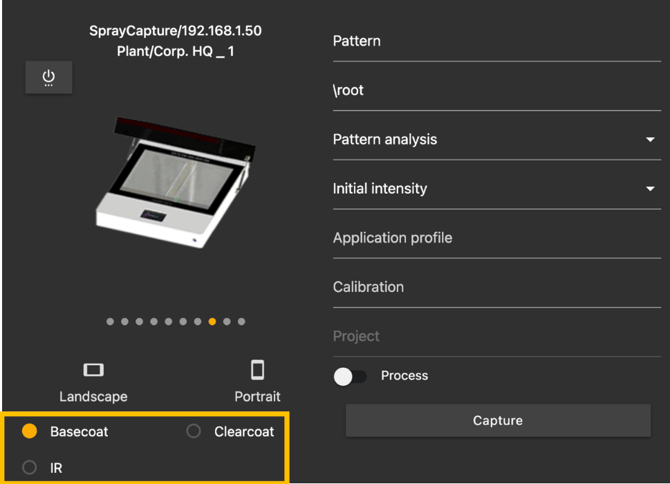
The Mk.2 unit has three light sources:
- Base coat: visible light used for most base coat paints
- Clear coat: UV light is used for paints with little to no pigmentation, mainly clear coats
- Infrared (IR): Infrared light is used for heavily pigmented paints with high light blocking capabilities, mainly primers or any paint which is not visible with the "base coat" setting of unit
1.2 Light Intensity
After we choose the right light source, we need to set the correct intensity.
There are 6 intensity levels for each light source:
- Initial
- Intensity 2
- Intensity 3
- Intensity 4
- Intensity 5
- Intesity 6
- HDR (Combination of Initial Intensity & Intensity 6)
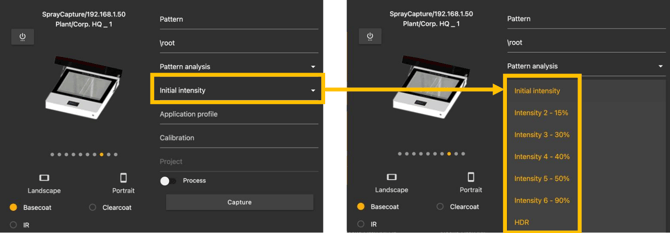
For each intensity level, more power is applied to the light source, ensuring better light penetration through the paint layer and thus visibility of higher paint thicknesses.
Keep in mind that increasing the intensity level will increase the maximum visible thickness; on the other hand, lower thicknesses will not be analyzable because the light power may be too high for that low thickness.
HDR is the combination of two images – initial intensity and intensity 6. This is used when we need to use higher intensity level to reach visibility of higher thicknesses and also keep the possibility to analyze lower thicknesses.
For the first capturing, we always choose initial intensity, which is the lowest setting and evaluate the captured image.
If we can see the full range of desired thicknesses, we keep this setting level. If there are areas with not visible thickness, we choose the next intensity and continue until the whole image is fully analyzable, meaning all the necessary thickness levels are visible for the unit.
1.3 Intensity Level Example
For choosing the correct light intensity we should be able to evaluate the whole image. It means the maximal intensity must be lower than 1.
Clear Coat Intensity 4
In this case, the intensity setting of 4 is clearly too low, as most of the image is dark red, indicating the light intensity of 1 – not visible paint thickness.
Clear Coat Intensity 5
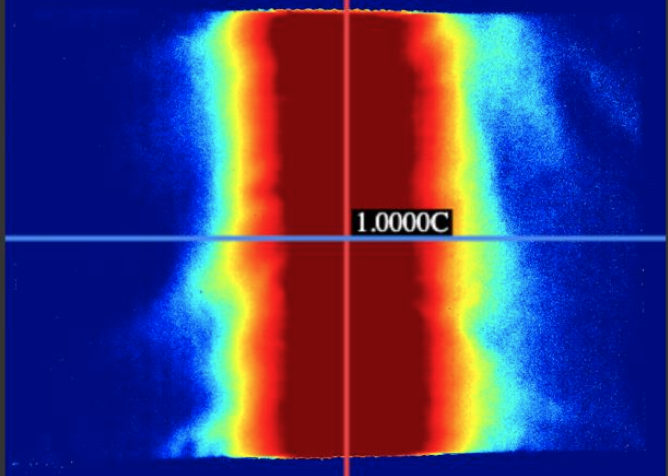
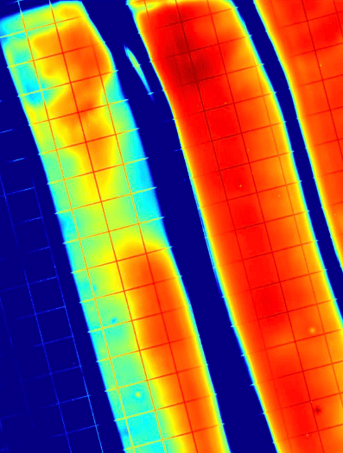
With the intensity set to 5 the visibility is much better, but in some areas of the image we are at an intensity of 1 or very close to 1. This indicates that most of the image is analyzable, but in some areas the paint layer is too high for this setting.
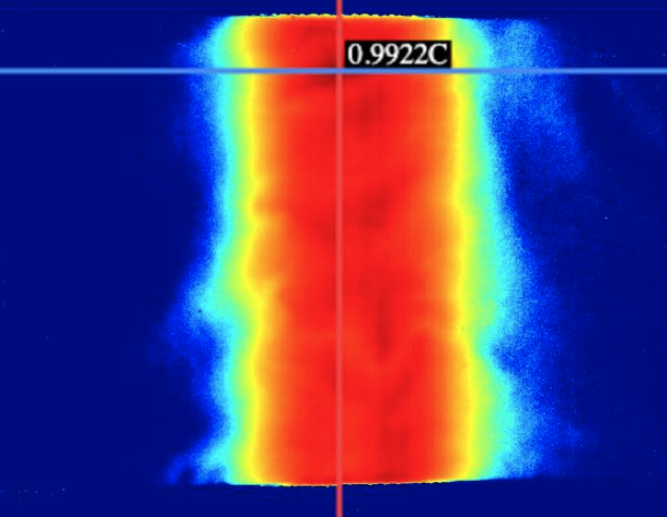
Clear Coat Intensity 6
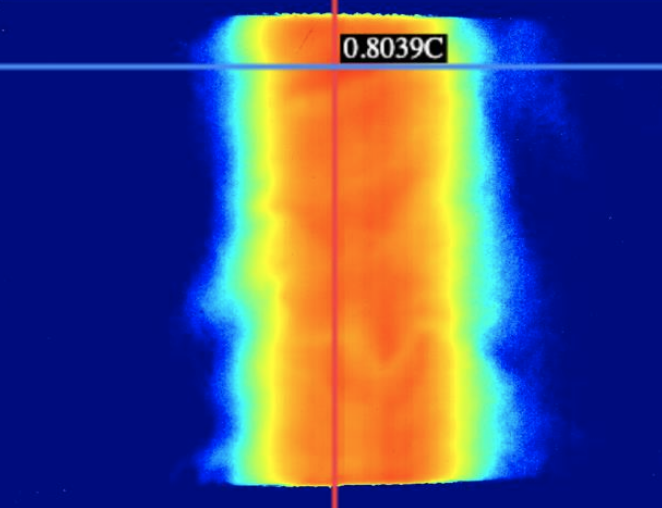
At intensity 6, the entire image is fully visible with the maximum intensity around 0.8, which gives us the best result as the full thickness spectrum is fully visible.
2. Calibration Foil Crop
For calibration purposes, Sprayvision uses special calibration foils with printed markers that are used for automatic cropping required for later software processing.
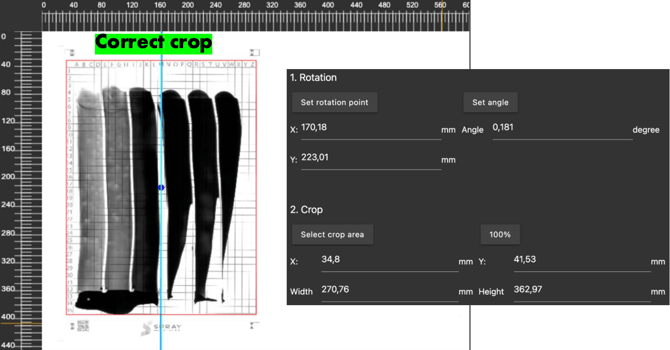
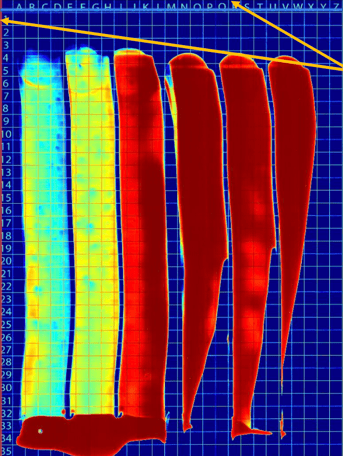 On the image you can see the optimal foil crop – the cropped area is on the edge around the numbers on the left side of the foil and around the letters at the top
of the foil.
This exact cropping is necessary for correct cell position detection, which is used for accurate calibration measurements.
2.1 Calibration Intensity Level
For demonstration purposes, we will use the image below to evaluate if the initial intensity is sufficient for our application.
From the technical data sheet of the paint and from production results we know that the applied thickness for this type of paint is 30um.
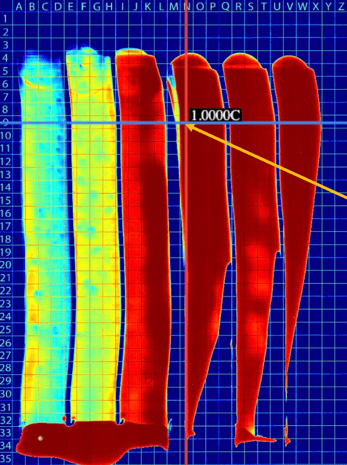
For Sprayvision paint calibration it is always better to measure at least +10% more paint thickness than the standard applied. Here the desired thickness for this calibration is 33um.
We used a calibrated ferromagnetic probe to find where this desired 33um coating thickness is located on the foil.
In our case, the 33um thickness is in cell position "N9" – marked with the arrow.
At this position, the light intensity is "1.0000C", which means that the thickness is not visible at this light intensity setting.
To calibrate to 33um we need to increase the light intensity until the position "N9" is visible – this means that the light intensity must be less than 1 – this means that the light can penetrate the paint layer and can be calibrated.
2.2 Calibration Foil Crop – Pattern Editor
In our case, the required intensity level was 5 to see the desired 33 um thickness.
 As we explained at the beginning of this chapter, our software uses the automatic cropping function for the calibration foil to correctly detect the cell position.
As we increased the light intensity, the ink markings on the calibration foil are no longer visible because the light is too strong and the printed markings on the calibration foil are not visible.
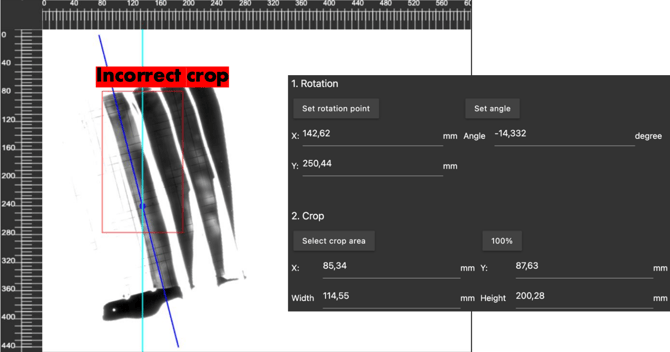
As a result, the software is unable to crop the foil correctly, and the image on the left is displayed with incorrect cropping, which is not usable for the calibration procedure.
If we open the image captured with initial intensity and correct crop in the pattern editor, we can see the cropping highlighted with red lines and direct setting for cropped area and angle adjustment.
With intensity 5 we can see that the cropped area is not set correctly. There is only a part of the calibration foil in cropped area and the angle setting is also set incorrect.
Base coat initial intensity
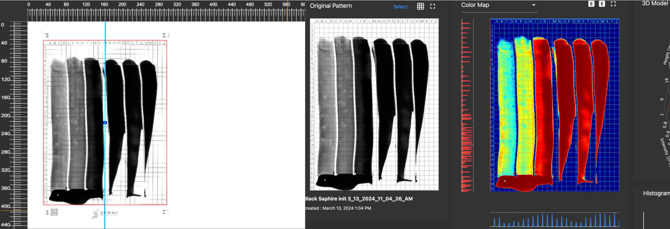
Base coat intensity 5
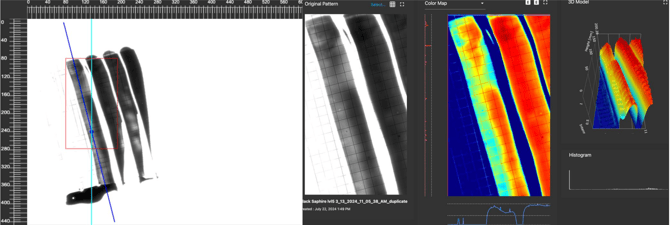
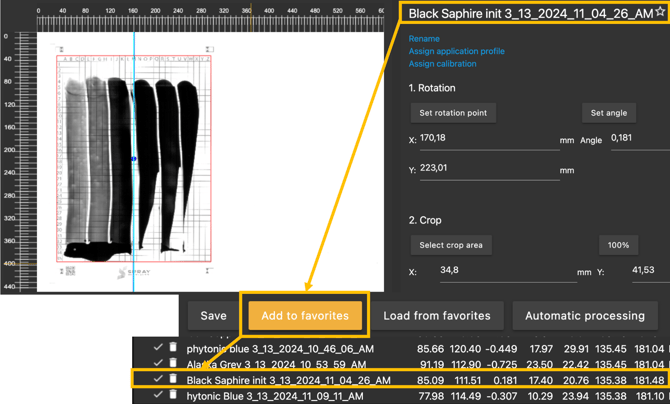
In order to have the correct cropping with intensity level 5, we need to open the image taken with the initial intensity in the editor and click on "Add to favorites". This option will save the cropping setting – angle adjustment and cropped area with the same name as the image name in the database.
In the old Pattern Editor module, you can add your favorites via the dedicated button:
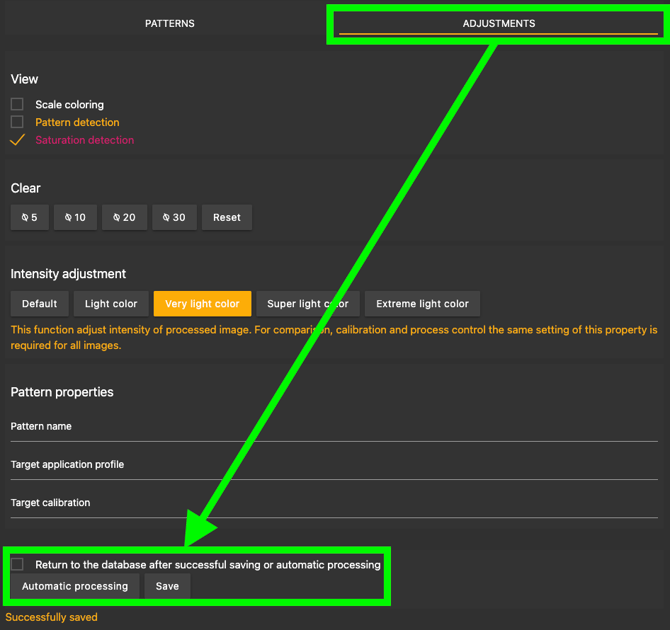
If you prefer to use the New Pattern Editor, you can save the new cropping to your favorites through the heart-shaped icon. However, you need to first switch to the "Adjustments" tab and save your newly selected cropping, afterwards the heart icon will become available to save the new favorite.

Open the image taken with intensity 5 in the editor and click "Load from favorites". Choose the saved setting from the image taken on initial intensity. Don't move the foil inside the unit during capturing on all intensities. This ensures the crop is consistent.
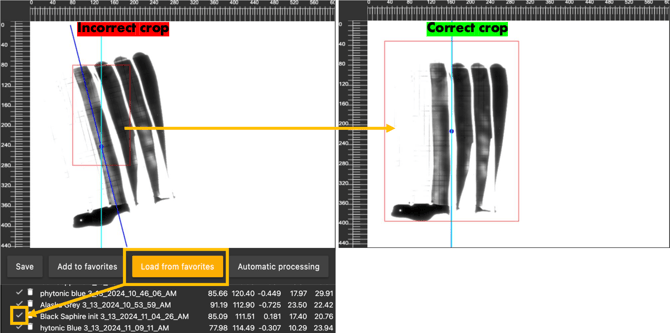
In the New Pattern Editor, you can load your favorites through the "Load processing from favorites" icon: