
How to update HTTPS certificate for the SprayCapture device and update MS Windows Trusted Root Certification Authority
⚠️ Why is this necessary?
Since SprayCapture uses an HTTPS connection for transferring captures and communication between the dedicated PC and capturing device, it is essential to have a valid certificate installed on the device and a trusted certification authority on the computer.
The maximum validity of certificates is 398 days (≈13 months), so the certificate must be updated annually.
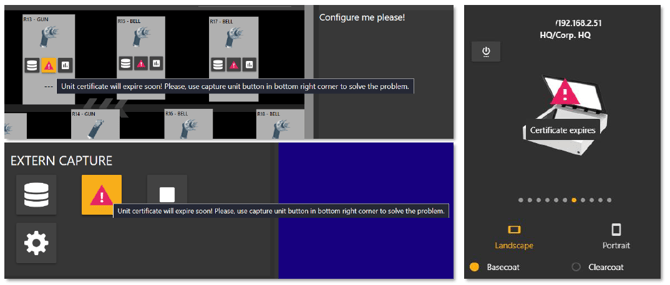
Two months before the certificate’s expiration, a warning icon appears on every capture button. Hovering over it shows whether the device requires certificate renewal.
🔎 Quick Navigation
Step 1 – Power on and connect the unit
Step 2 – Ethernet network card on the PC dedicated for SprayCapture unit
Step 3 – Ethernet network card on the SprayCapture unit
Step 4 – Verifying the connection to the SprayCapture unit
Step 5 – Find the SC unit in settings to generate a new certificate
Step 6 – Install the certificate on Windows
Step 7 – Verify connection and capturing
Step 8 – Check the hardware clock (if issues persist)
Step 9 – If other issues persist
Step 1 – Power on and connect the unit
Switch on the capturing device
To switch on the capturing device, proceed as follows:
- Press the MAIN POWER SWITCH (1) to the “I” position.
- Press the POWER button (2) – the button lights up blue.
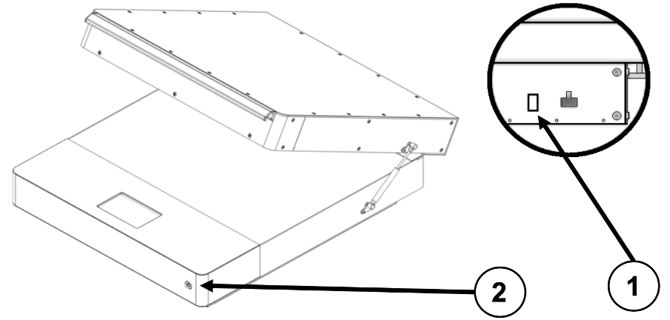
Wait until the unit’s operating system has finished loading, then access the information menu by pressing the (i) button on the touchscreen:
Final network connection schematic
Below is a typical network connection setup for a dedicated SprayCapture configuration:
💡 TIP – If you are not familiar with the SC MK2 unit, please check the following article from our Knowledge Base:
Step 2 – Ethernet network card on a PC dedicated for the SprayCapture unit
Needs to be set up for the first time or in the case of a change:
- Configure IPv4: manually
- IP ADDRESS: up to the configuration you can find on display of unit under i button mentioned above, except the last numbers = XX = must be different then SprayCapture unit or different device in the network): 192.168.1.XX
- SUBNET MASK: 255.255.255.0 (or 24 if the CIDR notation is active – not often)
- GATEWAY: 192.168.1.1
- DNS: 8.8.8.8
Step 3 – Ethernet network card on the SprayCapture unit
Usually uses the following settings – no manual configuration required:
- Configure IPv4: manually (DHCP setting we strongly do not recommend)
- IP ADDRESS: 192.168.1.50 (the exact adress you can check on display of unit mentioned above)
- SUBNET MASK: 255.255.255.0
- GATEWAY: 192.168.1.1
Step 4 – Verifying the connection to the SprayCapture unit
Once you have completed Steps 1–3, you should be able to open:
-
http://192.168.1.50 before certificate installation
-
https://192.168.1.50 after certificate installation
-
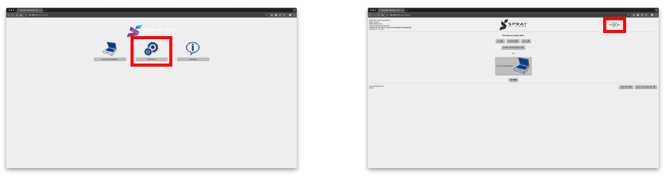
The webpage is hosted directly on the SprayCapture unit, requires no internet connection, and looks like this:
Step 5 – Find the SprayCapture unit in settings to generate a new certificate
- Go to https://spraycapture.app/ and log in.
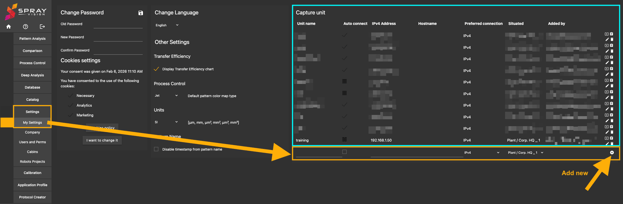
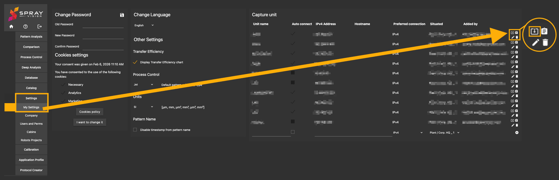
- Open Settings → My Settings.
- If the desired IP device is not available, fill the area (in the yellow rectangle as shown in the picture below) & click "Add new" = plus button.
- Under Certificate Generating & Download, click the rectangle with an arrow icon. The following modal window will appear:
ℹ️ Certificate renewal for a unit Unit./192.168.1.50
Please visit the following page:
https://192.168.1.50
On this page you will be informed that your connection is not private. Click on "Advanced" → "Continue"
You can now close the unit login page window and update the certificate.
After generating the certificate, SprayVision.pem is downloaded.
Install SprayVision.pem in your browser as the root Certification Authority.
ℹ️ Installation instructions for Google Chrome:
Menu -> Settings -> Privacy and security -> Security -> Manage certificates -> Your certificates (on the left side of the page) -> Manage imported certificates -> Trusted Root Certification Authority -> Import -> Next -> Select downloaded pem file ( in filter choose (.) - All files) -> Next -> Next -> Finish -> Confirm
Please remove the expired SprayVision certificate. In the certificate list, select the expired certificate, then click the remove button and confirm.
After updating the certificate, the capture unit is restarted.
After updating the certificate, refresh the page.
5. Follow the instructions and download the file myCA.pem.
The rest of this article provides more detailed information and a step-by-step guide on the installation than what was briefly mentioned in the modal window above.
Step 6 – Install the certificate on Windows
Without an up-to-date certificate, capturing will not work – all capture buttons will remain grey.
Installing the SprayVision certificate (Chrome or other Chromium browsers)
1. Open Google Chrome Settings
- Go to "Settings"
- Search for “HTTPS”
- Go to "Security" → "Manage certificates"
2. Remove any existing SprayVision certificates
- Go to the "Trusted Root Certification Authorities" tab
- If “SprayVision” exists, select and click "Remove"
- Confirm the removal
⚠️ IMPORTANT – If the old certificate remains installed, the new one may not install correctly, and capturing will remain unavailable.
3. Import the new certificate
- Click Import…
- Browse and select the file
myCA.pem - If not visible, switch file type to All Files (.)
- Choose “Place all certificates in the following store” → Trusted Root Certification Authorities
- Click Next → Finish
4. Confirm successful installation
- The message “Import successful” should appear
- Verify that SprayVision now appears in the list
5. Restart Chrome and verify
- Open
https://192.168.1.50 - If no warning appears, the installation succeeded
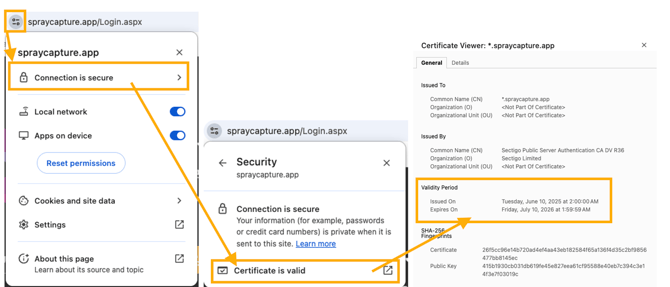
- You can click the padlock icon to view certificate details and see validity period
Step 7 – Verify connection and capturing
After the installation:
- Close and reopen your browser if you haven’t done so since the last step.
- Log back into the SprayVision app.
- Wait for cca 1 minute (or less if you have fast internet connection) for all features to load.
- Open the Capturing Manager (circular camera button located in the bottom-right corner of the app).
- Your unit should appear, and the Capture button will be fully colored.
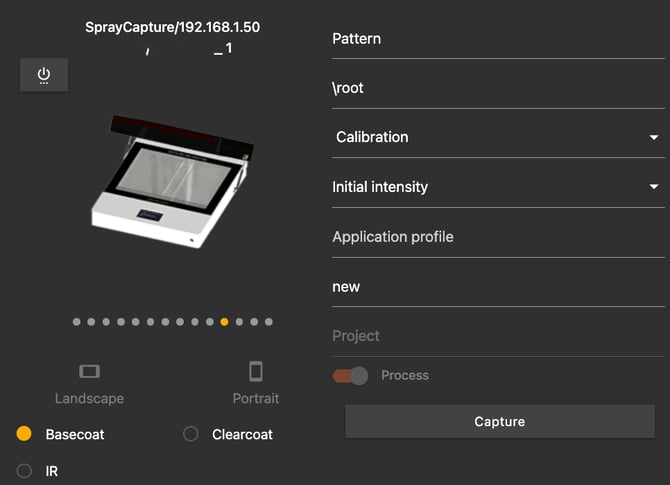
ℹ️ NOTE – If the "Capture" button is still grey:
- The certificate might not be installed correctly
- There may be a timing mismatch on the SprayCapture unit
- Try restarting the browser or reinstalling the certificate
Step 8 – Check the hardware clock (if issues persist)
If the certificate’s time is set in the future, you will need to wait for the PC (where the time is typically synchronized with the internet) until the certificate becomes valid. If the certificate’s time is set in the past, it becomes valid immediately upon saving.
Significant time gap between PC & SC unit can cause:
- waiting until the certificate validates
- validity can expire sooner than after 1 year
- certificate validity will never start if the time difference is greater than 1 year
Since the certificate includes a timestamp, the internal clock on the SprayCapture unit must be synchronized.
- Open your browser and visit
http://<device_IP>
(e.g.,http://192.168.1.50) -
Click on "Setup Device" to open the login page.
-
Check the time and date in the top-right corner.
-
If the time and date are correct, no action is needed.
-
If the time and date differ from your computer, contact the SprayVision support team to correct the hardware clock.
9 – If other issues persist
🔍 Please check the following article:
Hardware connection issues – Chromium engine version 142.0.7444.60 and above
Your SprayCapture unit is now ready and securely connected using HTTPS with SHA256 encryption.
We trust that this article has provided you with valuable guidance and clarity regarding the installation of HTTPS certificate.
Should you have any additional questions, require further assistance, or encounter any issues, please do not hesitate to contact our support team at helpdesk@sprayvision.com. We are always here to support you and ensure you get the most out of your SprayVision experience.