
The Comparison module enables you to view two patterns at the same time, allowing you to perform visual checks and to use the standard measurement tools available in the Pattern Analysis module.
You can perform the comparisons in 2D or 3D mode.
The Comparison module can be opened from the main menu, where you can choose either 2D or 3D mode to view the module:
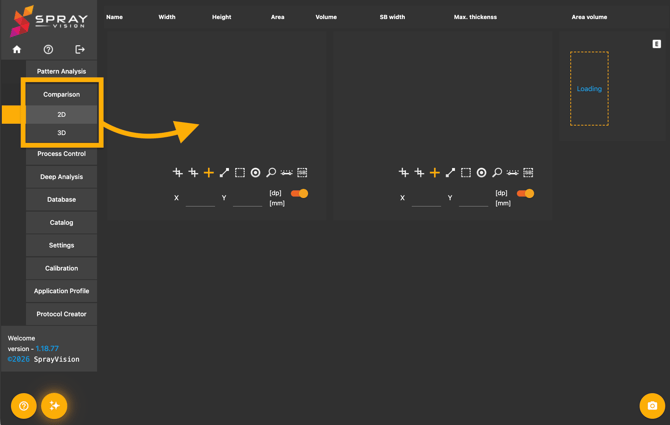
🔎 Quick Overview
2D Comparison
Opening New Patterns
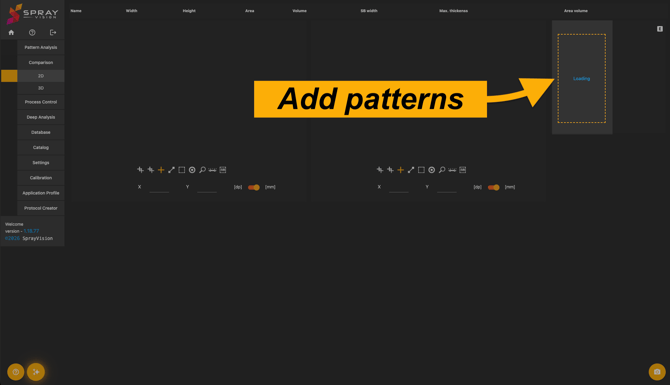
To open patterns for the 2D comparison, navigate to the right side of the 2D mode window and click on the "Loading" button. This action will open the Database view from which you can select one or more patterns.
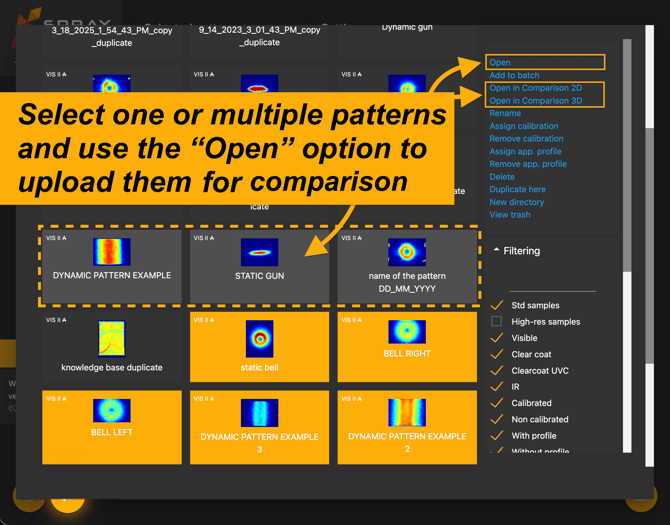
To select multiple patterns at once, hold the Left Shift key and click on the patterns you want to compare.
To upload the images into the 2D comparison, click on the "Open" button in the right vertical Database menu.
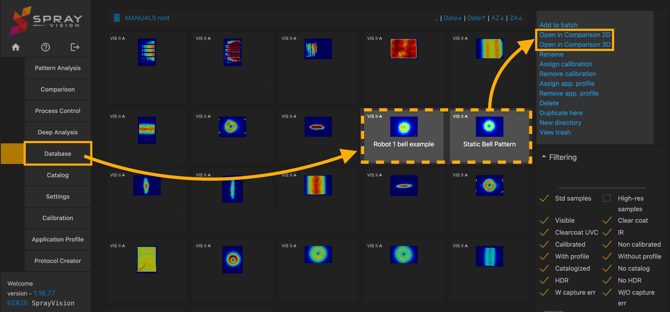
💡 TIP – You can also open the patterns to be compared directly from the Database module.
Go to Database, select the patterns and choose "Open in Comparison 2D/3D".
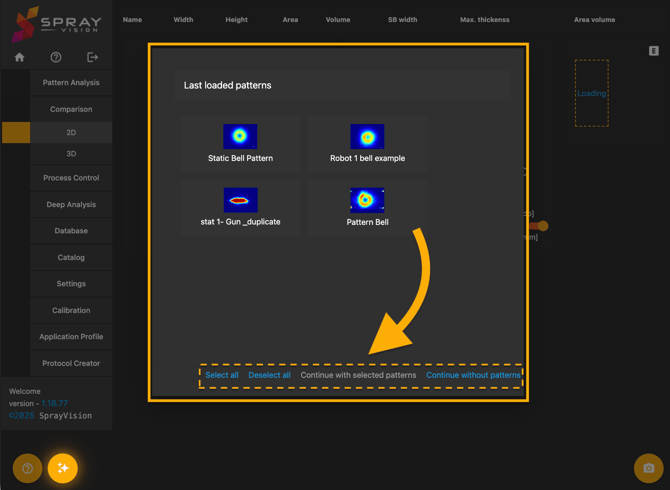
💡 TIP – The Comparison module remembers your last updated patterns. If you switch to a different module and then return to the Comparison module,
a modal window with your last saved selection will open.
You can either continue with your previously used patterns, or choose new ones.
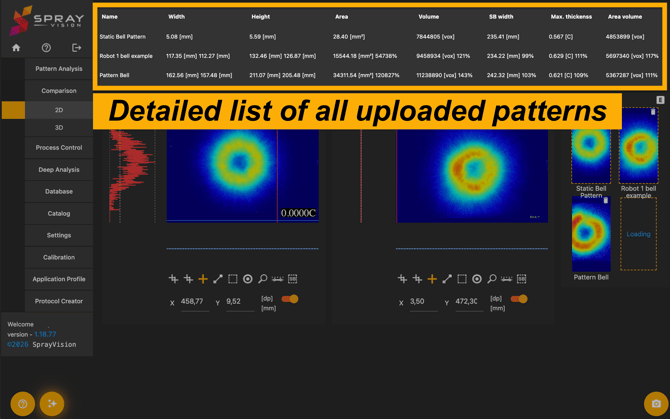
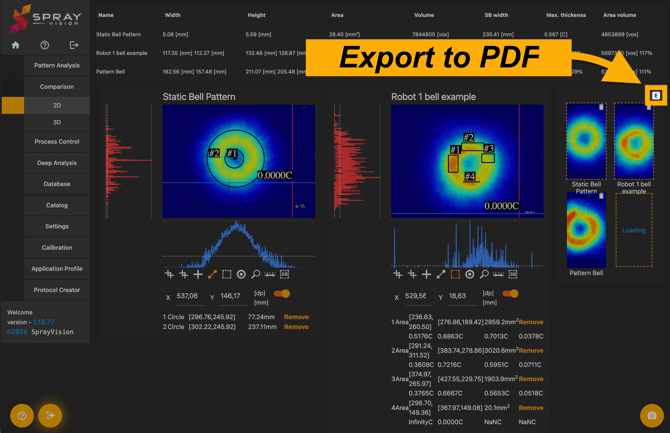
The 2D comparison will show all of the uploaded patterns, with first two being displayed for comparison analysis. In the top section of the window, a summarised property list of all uploaded patterns including their name, width, height, area, volume, SB width, max. thickness and area volume is displayed.
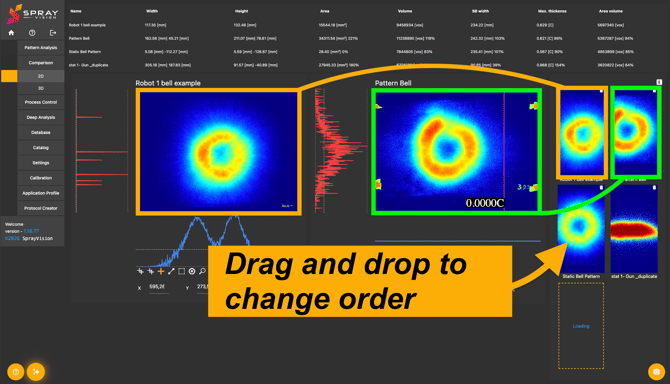
To switch the individual analyzed patterns, simply drag and drop the pattern previews in the right pane, with the first pattern being displayed on the left and the second pattern on the right, while the rest of the uploaded images remain in the upload section.
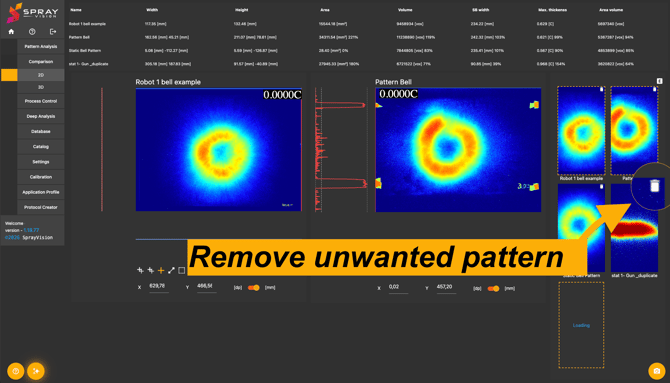
You can add more patterns to the comparison later, or remove any of the already uploaded ones using the bin icon.
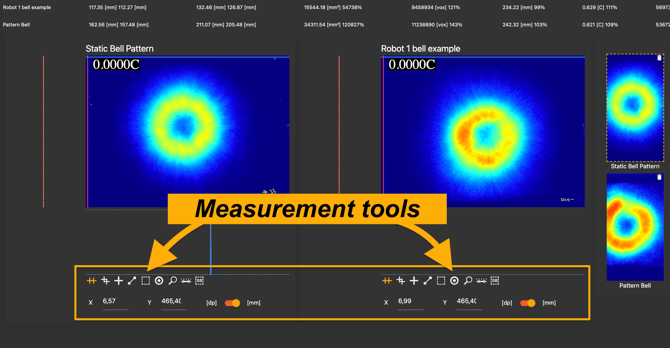
Measurement Tools
The measurement tools in the 2D comparison mode are the same that are available in the Pattern Analysis module. They are described in more detail in the help article below:
The measurement tools are located below each of the analyzed patterns. You can use a different tool for each pattern to make individual measured areas.
The available tools include the cross, draw line tool, examine area, examine diameter, zoom, color settings and SB50 measurement.
The cross tool can be used independently, or can be locked in the same position for both patterns to compare.
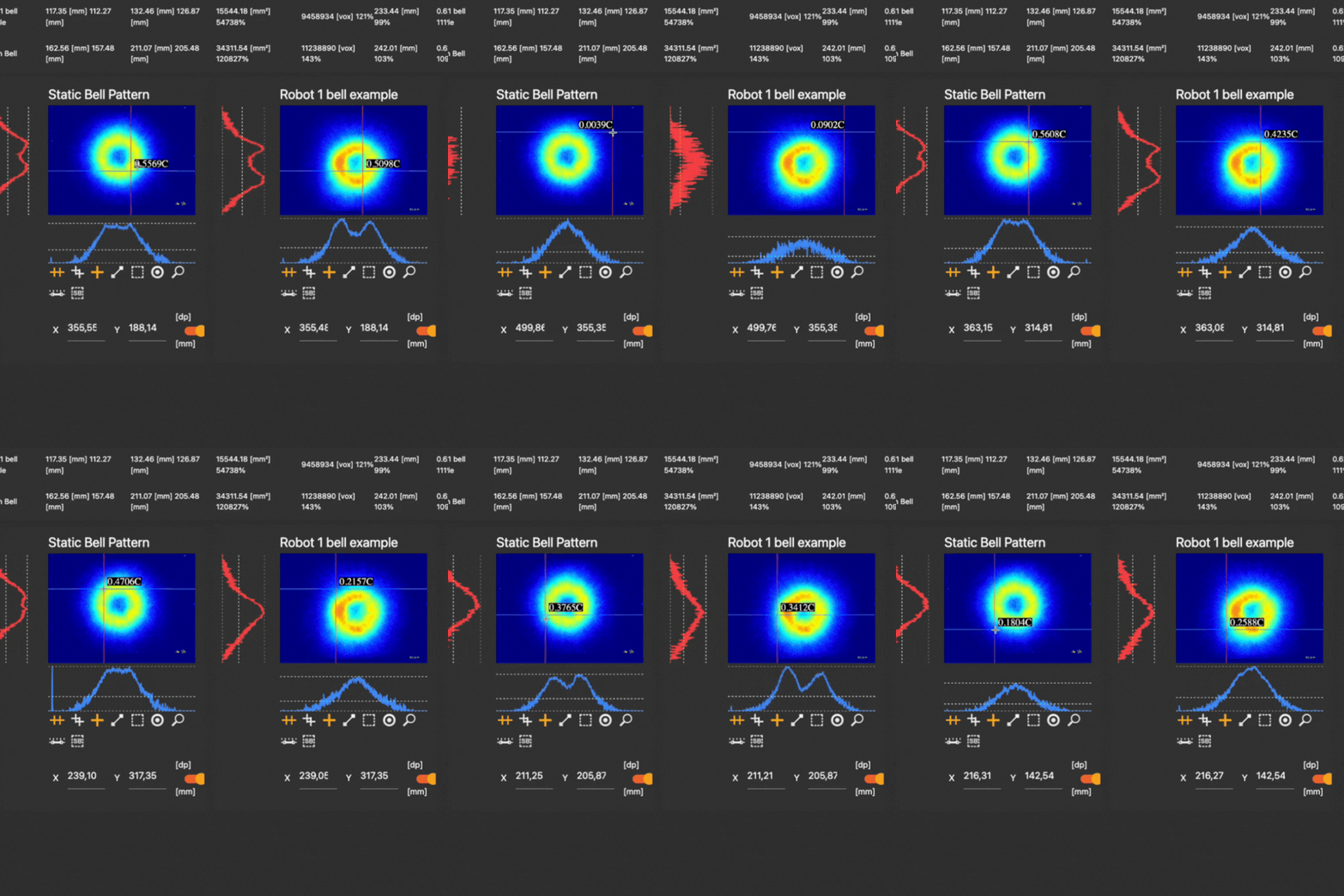
The cross tool can be found on the left side of the toolbar.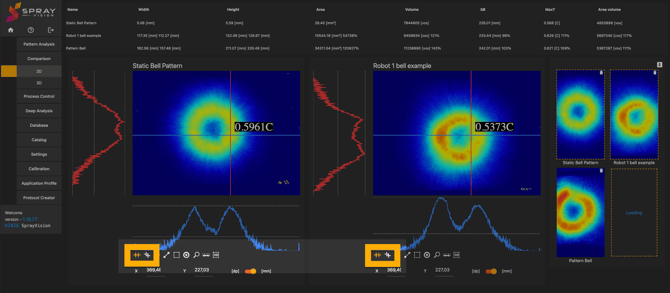
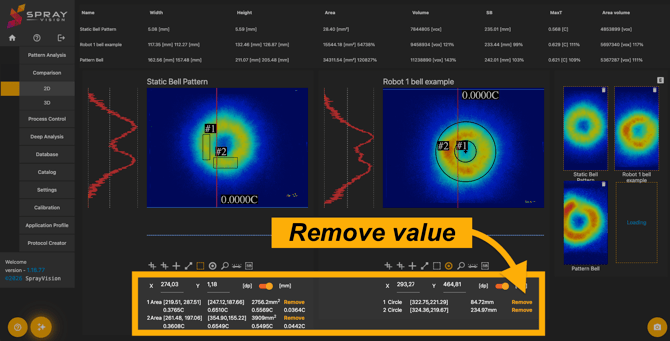
The values measured with the individual tools will appear below the toolbar. The values can also be removed from there.
Exporting the Results
When you are satisfied with the measured values, you can save and export your analyzed patterns into a .PDF file using the Export button located on the right side of the 2D comparison window.
3D Comparison
Opening new patterns
The 3D comparison mode lets you inspect and compare your patterns using an interactive three-dimensional model, so you can rotate, zoom and tilt the view to evaluate thickness distribution, surface defects and overall coverage from every angle. This makes it easier to identify critical areas and to verify uniformity across complex geometries.
To open the 3D comparison mode, go to the main menu → Comparison → 3D.
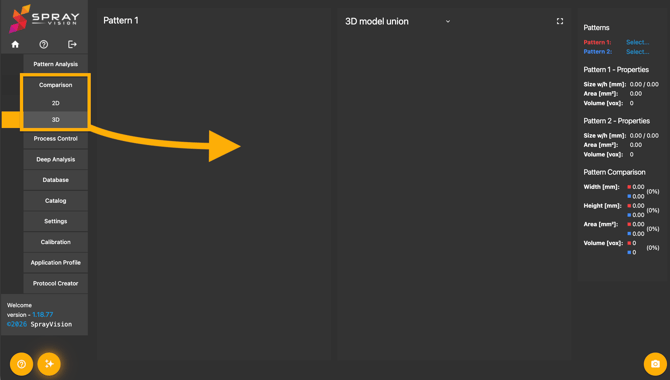
To upload your patterns, navigate to the right pane of the 3D comparison mode. Next to the Pattern 1 (red) and Pattern 2 (blue) options you can find the "Select…" buttons, which allow you to upload the patterns to be analyzed.
Clicking on the "Select…" button will open the Database view, same as in the 2D comparison mode.
Viewing the Models
In the 3D visualization, Pattern 1 (red) on the left serves as the reference pattern, while Pattern 2 (blue) on the right is compared against it.
You can either view the patterns individually, or merge them into one 3D model. By default, the "3D model union" option is pre-selected and the pattern models are displayed in a distinct color, making it easier to differentiate and evaluate them.
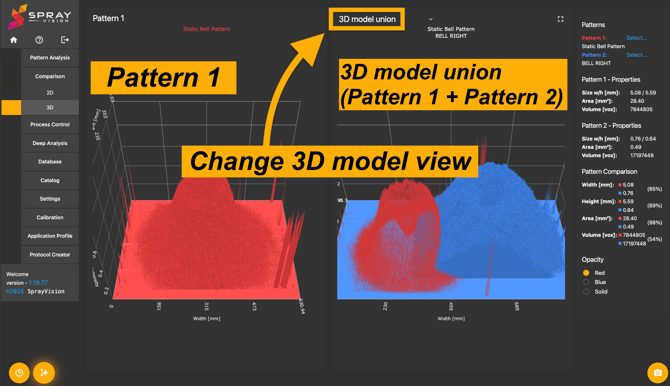
To view the patterns separately, choose the "Pattern 2" option in the top of the right model window:
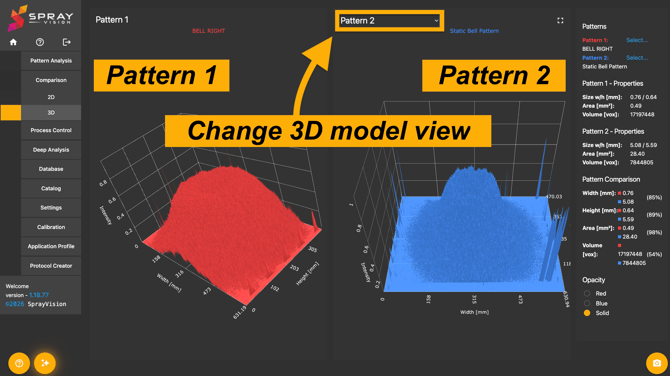
You can rotate both models using a variety of camera and rotation tools, which become visible after hovering over the toolbar area with your mouse.

In the right vertical pane, you get an overview of the uploaded pattern properties: size (width, height), area, volume. Each of the pattern's properties are then compared in the last section.
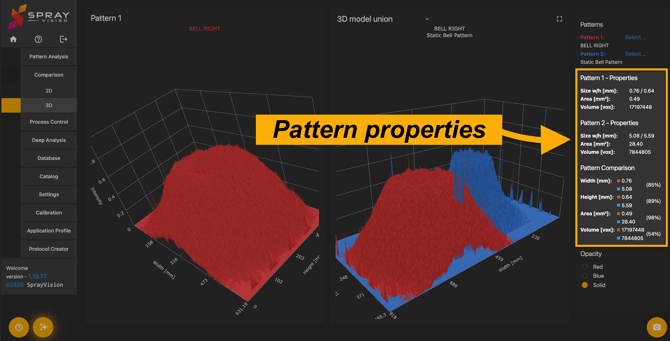
To control how clearly the merged 3D model of Pattern 2 is displayed, adjust the opacity levels in the “Opacity” section of the right-hand pane.
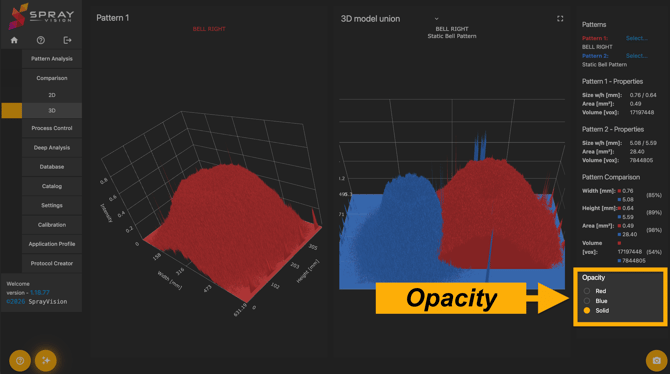
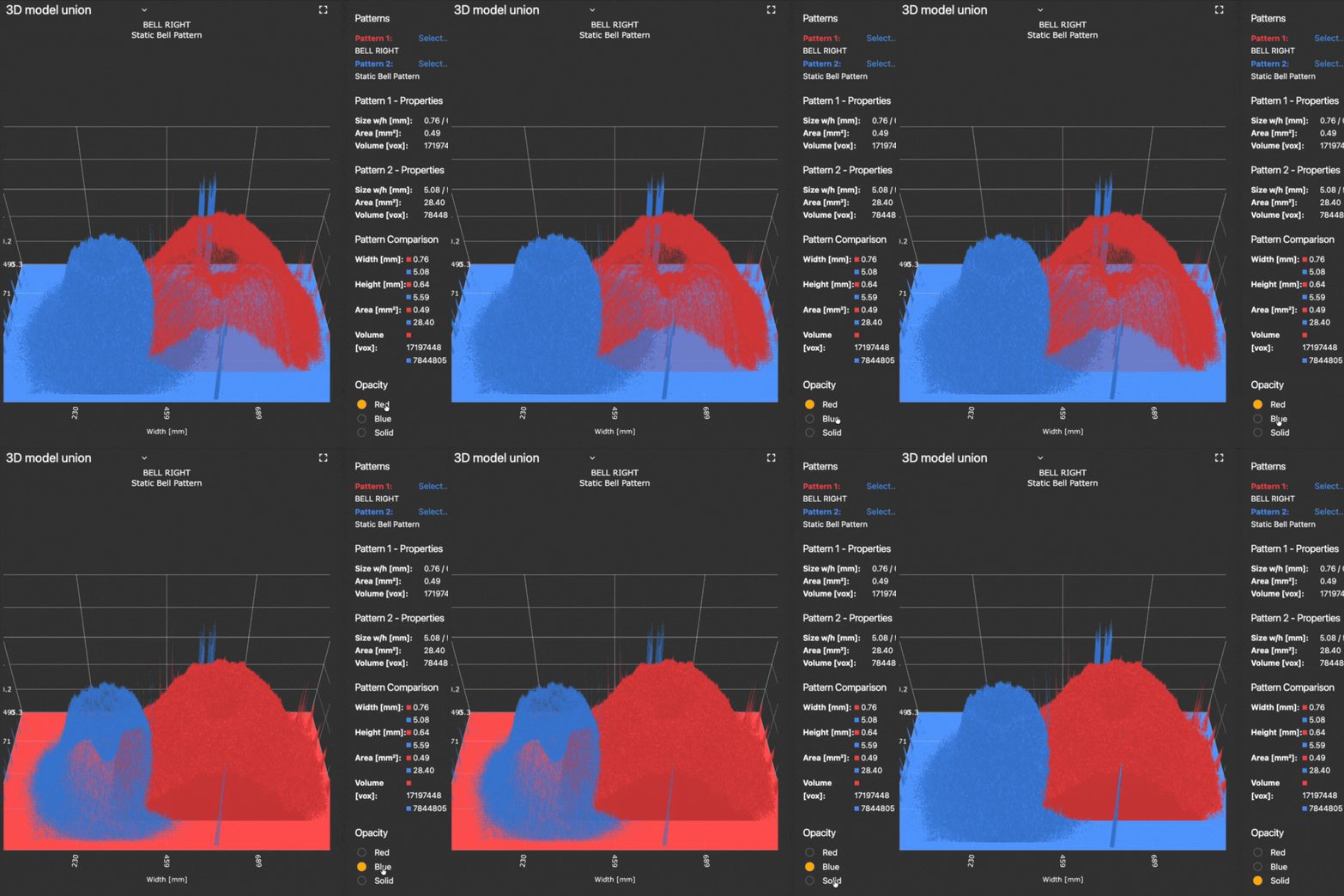
You can further refine how the model is displayed by adjusting the opacity levels, hiding the axes and/or their titles, and changing the background color to improve contrast and visibility of the visualization.
To open the additional settings, simply click on the  icon on top of the camera toolbar area.
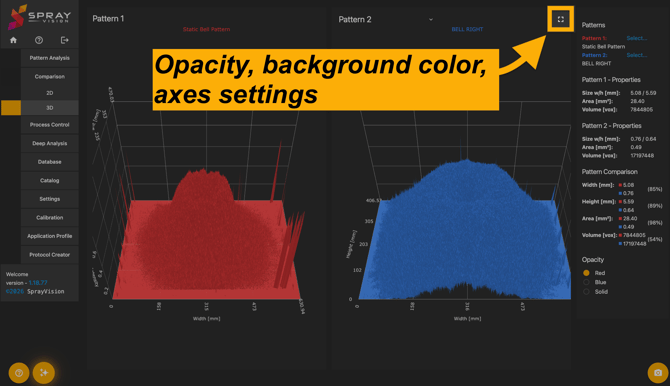
These display settings are available both when viewing each pattern separately and when using the 3D model union mode.
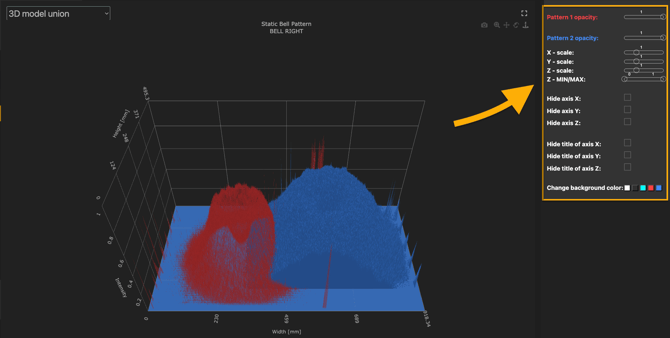
You can close this view by clicking the  icon on top of the camera toolbar again.
This concludes the help guide on the Comparison Module. If you did not find the information you were looking for or if you run into any issues, please do not hesitate to contact us via support@sprayvision.com.